If you're trying to install NordLayer and Windows Installer throws an error saying it can't find NordLayerSetup.msi inside a path like C:\WINDOWS\TEMP\NordLayerInstallExtract\, it's a confusing one — the installer you downloaded clearly exists, so why is Windows looking for it somewhere else entirely?
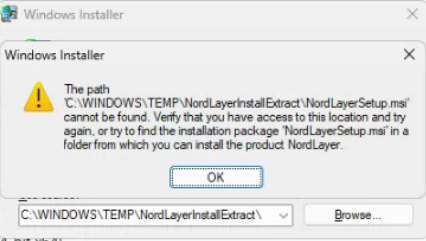
What's actually happening
The NordLayer installer you download is a small launcher executable, not the actual installation package itself — when you run it, it extracts the real .msi installer into a temporary folder under C:\WINDOWS\TEMP\, then hands off to Windows Installer to run that extracted file. The error appears when Windows Installer goes looking for that extracted .msi and it's no longer there — usually because a previous failed install attempt left behind a broken or incomplete reference, the temp folder got cleaned up by disk cleanup software between the extraction and the install step, or a prior NordLayer install/uninstall didn't fully complete and left a stale installer reference behind in the registry.
Either way, the fix isn't about finding or restoring that specific temp file — it's about clearing out the broken installation state so a fresh install can run cleanly.
The fix
- Download and run Microsoft's official troubleshooter from:
aka.ms/Program_Install_and_Uninstall - Click Next on the welcome screen.
- Select Uninstalling when asked what type of problem you're having.
- From the list of detected programs, select NordLayer (it may show up even if the install never fully completed, since Windows can still hold a partial registry entry for it).
- Let the tool run through and remove any trace of the broken install attempt.
- Restart your computer.
- Download the NordLayer installer fresh from NordLayer's official site (don't reuse the old downloaded file, in case it's the source of the problem) and run the installation again from scratch.
Why this works: the troubleshooter doesn't try to repair or locate the missing temp file — it removes the underlying broken installation reference entirely, so Windows Installer has a completely clean slate to work from. Reinstalling after that runs the full extraction-and-install process again from the beginning, with nothing left over from the failed attempt to conflict with it.
Why this happens with VPN and security client installers specifically
This two-step pattern — a launcher that extracts an .msi to a temp folder, then hands off to Windows Installer — is common for VPN clients, security software, and other tools that need to install system-level network drivers as part of setup. NordLayer falls into this category because it installs a network adapter and routing components alongside the regular application, which means the install process is more complex and has more steps where something can go wrong than a typical single-file application install.
Because of that complexity, these installers are more sensitive to interruptions — an antivirus scan kicking in mid-extraction, the temp folder being cleared by a scheduled cleanup task, or a previous install attempt being cancelled partway through, can all leave behind exactly this kind of broken reference. The Program Install and Uninstall troubleshooter is the right tool specifically because it's designed to clean up these incomplete states without you needing to manually hunt through the registry yourself.