Trying to remove Malwarebytes through Settings > Apps or Control Panel and getting hit with a flat "Uninstall failed" message, with no further explanation, is a fairly common issue. It usually means the standard Windows uninstaller process is hitting a snag with leftover registry entries or a corrupted uninstall reference — not that anything is seriously wrong with your system.
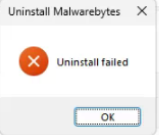
The fix: Microsoft's Program Install and Uninstall troubleshooter
Rather than trying to manually dig through the registry (risky and unnecessary for most people), Microsoft has an official troubleshooting tool built specifically to clean up stuck installs and uninstalls. It's the most reliable fix for this exact situation.
- Download and run the official Microsoft troubleshooter from:
aka.ms/Program_Install_and_Uninstall - Once it opens, click Next.
- On the following screen, select Uninstalling as the type of problem you're having.
- The tool will scan and show you a list of installed programs — find and select Malwarebytes from that list.
- Click Next and let the tool run through its cleanup process. It will attempt to fully remove the program, including any leftover registry references that were causing the standard uninstaller to fail.
- Restart your computer once it completes, even if not explicitly prompted — this ensures any locked files or services tied to Malwarebytes are fully released.
After this: check Settings > Apps again to confirm Malwarebytes no longer appears in the list. If you're planning to reinstall Malwarebytes afterward, doing a clean reinstall on top of this properly-cleaned state generally avoids any of the licensing or settings conflicts that can happen when reinstalling over a partially-removed version.
Why this happens
Standard Windows uninstalls rely on the program's own uninstaller executable along with registry entries that track exactly what was installed and where. Antivirus and security software like Malwarebytes is particularly prone to triggering uninstall failures because it installs low-level system hooks, kernel drivers, and protected services that resist being removed by design — that's intentional, since the same protections that make it hard for malware to disable your antivirus can also make it harder for the standard uninstaller to cleanly remove it.
If any of those registry entries become corrupted, get partially modified by an update, or a related service is still running and locking files, the standard uninstaller can fail outright without a clear reason. Microsoft's Program Install and Uninstall troubleshooter exists specifically to handle this category of problem — it doesn't rely on the program's own uninstaller logic at all, and instead works directly with Windows' installation records to force a clean removal regardless of what state the program's own uninstaller is in.